
Navigation › Documents › Processing › Goods Received Notes
Note: This article focuses on the simplest common use case for processing a goods received note (GRN), as well as the use case for processing a GRN and supplier invoice at the same time.
To process an unprocessed GRN, navigate to the relevant GRN. Open it by double-clicking it in the list, or by selecting it and pressing Enter.
Note: Several parts of the system are affected when processing a GRN. First, validation checks are executed to ensure that the GRN can be processed. If validation passes, the system performs the following actions:If the GRN and supplier invoice are processed together:
- Stock levels are updated.
- Cost prices are recalculated.
If only the GRN is processed:
- The GRN and supplier invoice are posted to the financial system.
- The GRN and supplier invoice statuses are set to Posted to Financial, and they cannot be edited.
- The GRN is posted to the financial system.
- The supplier invoice is created as an unprocessed invoice.
- The GRN's status is set to Posted to Financial, and it cannot be edited.
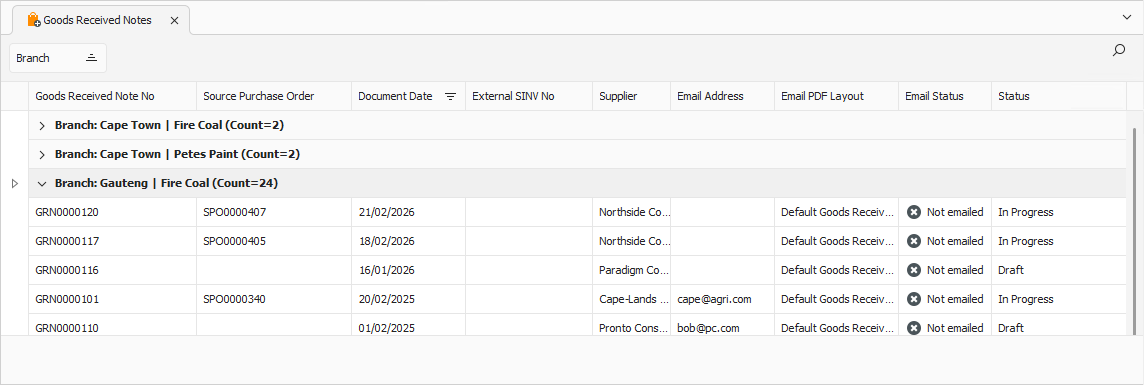
Opening the GRN displays its General tab.
General Tab
Confirm that the information on the General tab is correct.
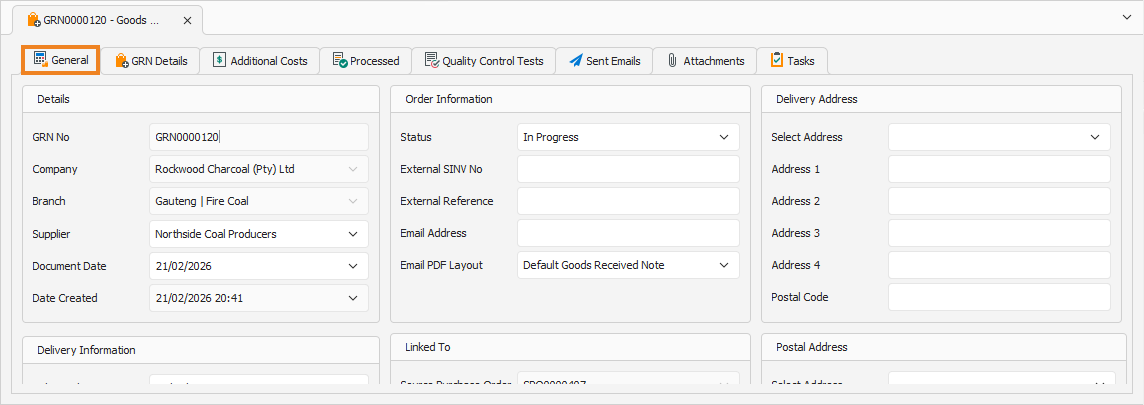
You can update some of the fields if required.
Note: Depending on your configuration, a unique external supplier invoice number might be required to process the GRN.
Once done, click the GRN Details tab to continue.
GRN Details Tab
The GRN Details tab displays the inventory items and quantities received from the supplier.
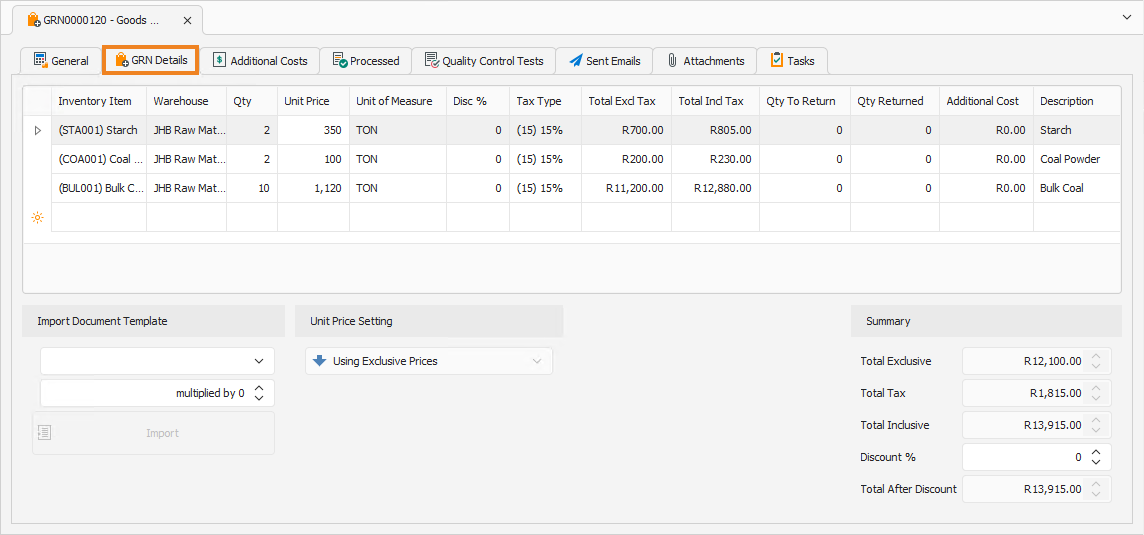
You can update some of the fields if required.
Note: Depending on your configuration, the splitting of a GRN and supplier invoice might be blocked. In that case, the Process GRN button is disabled.
Once done, you can process the GRN, or process the GRN and the supplier invoice.
Process GRN and Supplier Invoice
To process the GRN and accompanying supplier invoice, click Process GRN and SINV on the toolbar.

A popup appears, asking you to confirm the action.
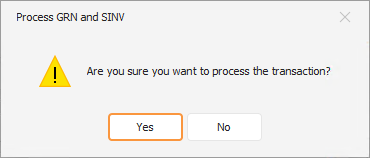
Click Yes to confirm the processing of the GRN and the supplier invoice. This processes the GRN and creates a processed supplier invoice. A popup confirms successful processing.
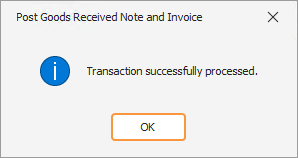
Click OK to close the popup and return to the GRN. With the GRN processed, it can now be printed and emailed. Click the Processed Tab to display the generated supplier invoices for this GRN.
Processed Tab
The Processed tab displays the supplier invoices generated from this GRN.

To open the supplier invoice for viewing, double-click it in the list, or select it and press Enter.
Note: It might be necessary to process only the GRN and generate an unprocessed supplier invoice. A common scenario is when stock arrives with a delivery note, but the supplier’s tax invoice arrives later.
Process GRN
To process only the GRN, click Process GRN on the toolbar.

A popup appears, asking you to confirm the action.
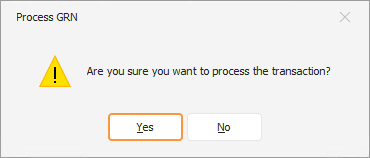
Click Yes to confirm the processing of the GRN. This processes the GRN and creates an unprocessed supplier invoice. A popup confirms successful processing.
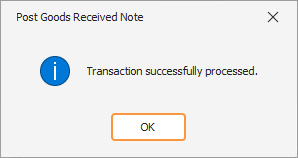
Click OK to close the popup and return to the GRN. With the GRN processed, it can now be printed and emailed. Click the Processed tab to display the generated supplier invoices for this GRN.
Processed Tab
The Processed tab displays the supplier invoices generated from this GRN.

To open the supplier invoice for viewing, double-click it in the list, or select it and press Enter.