
Navigation › Production › Maintenance › Bill Of Material
Note: This article focuses on the simplest common use case for creating a bill of material (BOM).
To add a new BOM, click New (Ctrl+N) on the toolbar. This opens a new blank BOM screen on the General tab.
General Tab
On the General tab, you have to complete the BOM's information, such as details and finished good information.
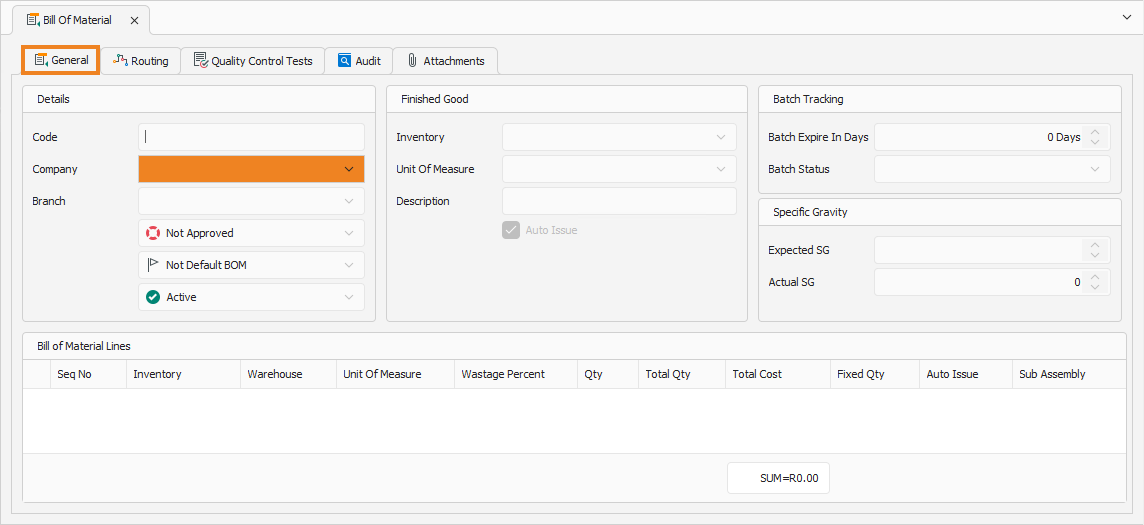
Details
- Select the Company for the BOM.
- Select the Branch for the BOM.
Finished Good
- Select the Inventory item for which the BOM is created.
- Select the finished good's Unit Of Measure.
- You can add or edit the finished good's Description.
Once done, click Save (Ctrl+S). This saves the BOM and generates a new sequential BOM code in the Code field.
Bill of Material Lines
In the Bill of Material Lines section, you have to complete the item information that pertains to manufacturing and production, such as the item type and production costing method.
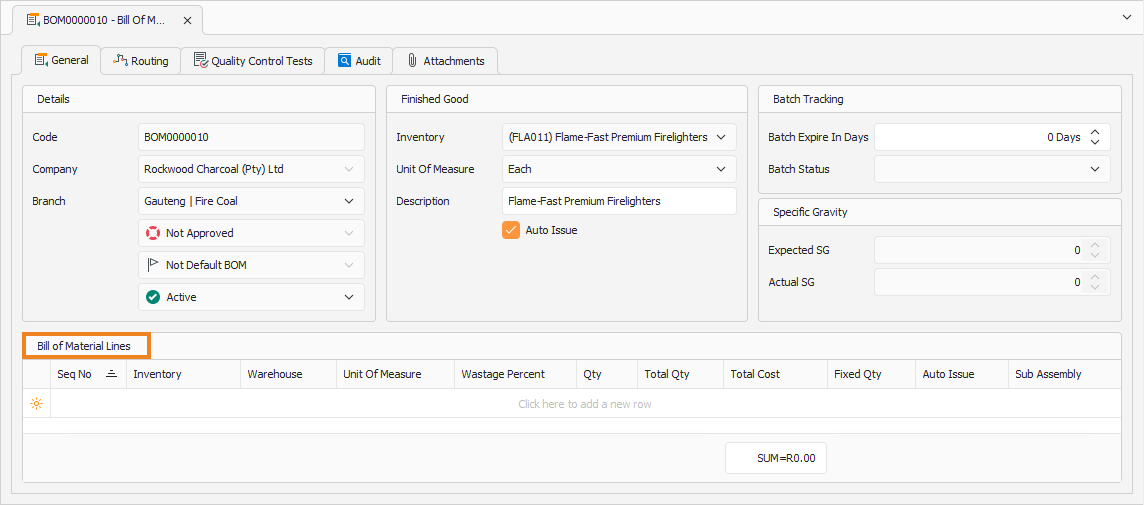
Note: Add a new line item to the list by clicking the empty cell under Bill of Material Lines. Depending on your configuration, some fields may be automatically populated when a line item is selected.
- Enter a Seq No for the line item. This sequence number is used to manage the BOM line items.
- Select an Inventory item to add to the BOM. These items are consumables or raw materials consumed during the production run to produce the finished good item.
- Confirm the Warehouse from which the item is sourced.
- Confirm the item's Unit Of Measure.
- Enter the item's typical production Wastage Percentage.
- Enter the number of items to consume from stock in the Qty column.
- Confirm the total number of items to be consumed from stock in the Total Qty column. This is the Qty + Wastage Percentage.
- Confirm the Total Cost for the line item.
Repeat the above steps until all required items are added to the BOM. Once done, click Save (Ctrl+S). This saves the BOM. You can also press Ctrl+Enter to save and close the BOM.