
Navigation › Production › Processing › Disassemblies
A disassembly is used to disassemble finished goods items out of stock to replace raw materials and consumables back into stock. Before a disassembly can be created, the relevant raw materials, consumables and bill of materials must exist.
Note: This article focuses on the simplest common use case for creating a disassembly.
To add a new disassembly, click New (Ctrl+N) on the toolbar. This opens a new blank Disassembly screen on the Disassembly tab.
Note: Depending on your configuration, some fields are automatically populated when selections are made.
Disassembly Tab
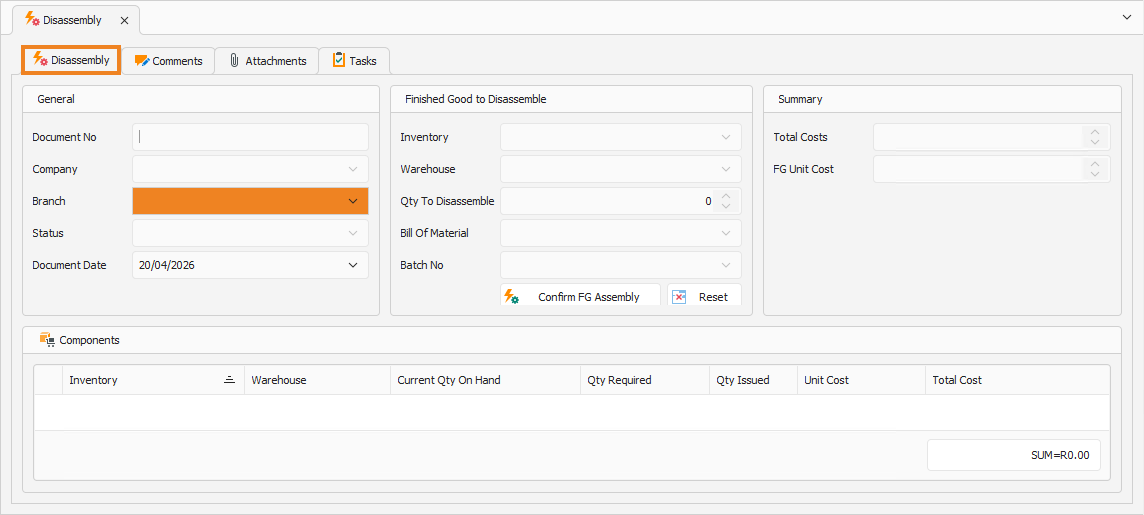
On the Disassembly tab, you have to complete the disassembly's information, such as the details of the finished goods to disassemble.
Assembly
- Select the Branch for which you are creating the disassembly.
- Document Date automatically populates to the current date. This date can be updated if required.
Finished Good to Disassemble
- Select the Inventory item to disassemble.
- Confirm the Warehouse where the inventory items are located.
- Enter the Quantity To Disassemble.
- Confirm the Bill Of Material to use. This can be updated if required.
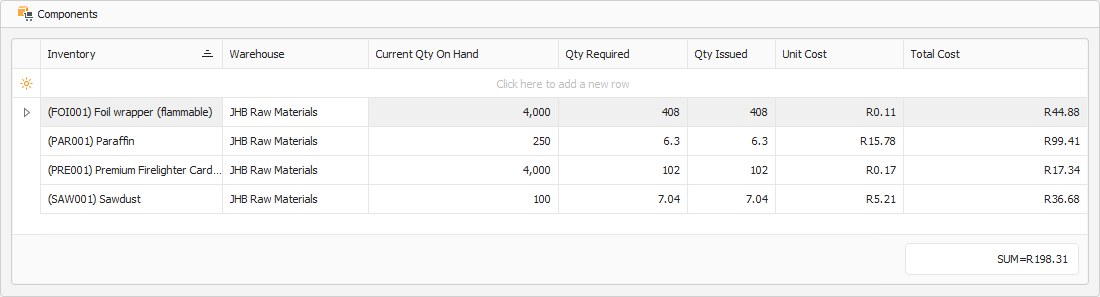
- Click Confirm FG Assembly. This automatically populates the Components section with the raw materials and consumables that will be replaced into stock after the indicated number of finished goods items are disassembled. Click Reset to clear the Components section.
Components
The Components section displays the raw materials and consumables that will be replaced into stock after the indicated number of finished goods items are disassembled.
Summary
Once the Components are populated, the Summary section is updated with the disassembly cost.
- The Total Cost field displays the total cost of raw materials and consumables recovered by disassembling the indicated number of finished goods.
- The FG Unit Cost field displays the cost recovered by disassembling a single finished good item.
Once done, click Save (Ctrl+S). This saves the disassembly. You can also press Ctrl+Enter to save and close the disassembly.