
Navigation › Documents › Processing › Toolbar › Email PDF
Note: While the Email PDF process is the same for all transactional documents, a Sales Order is used as the example for this article.
When a quotation, sales order, or invoice is created, the Email Address field is automatically populated from the selected customer's details. This email address can be updated if required.
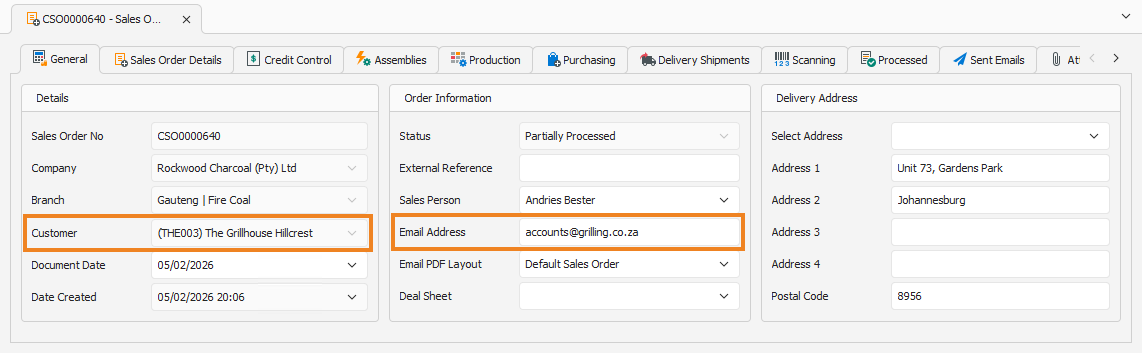
Next, select the Email PDF Layout for the document.
Note: An Email PDF layout needs to be set up in order to use the Email PDF functionality. Depending on your setup, only a Print Layout may be available.
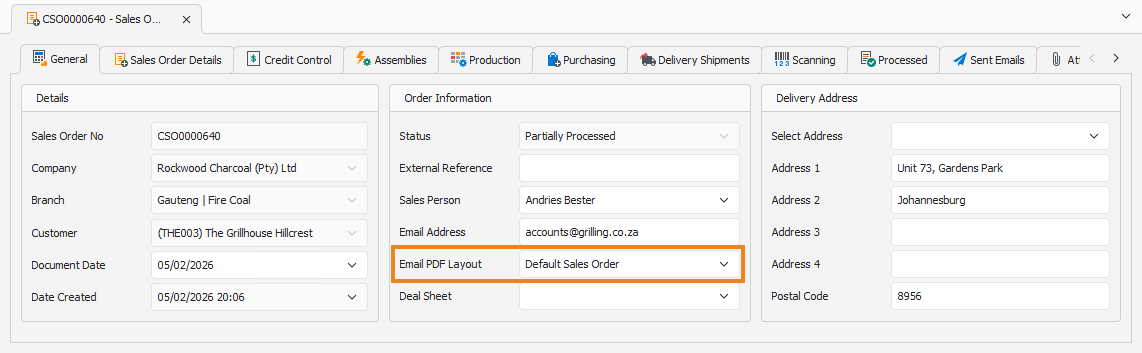
Once all information is correct, click Email PDF on the toolbar.
Note: For transactions that have a financial impact, such as invoices and credit notes, the document can only be emailed if the transaction is processed and cannot be edited anymore.

This opens the Compose New Email screen. By default, the Email tab is displayed.
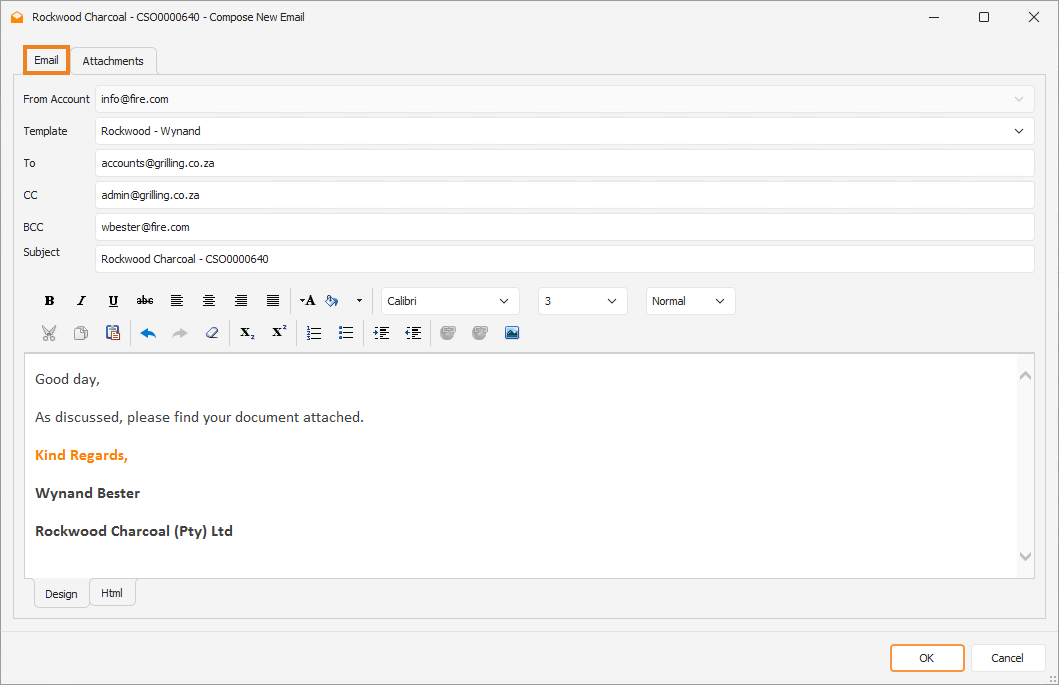
Here you can compose the email as required.
Note: Multiple email addresses can be added to the To, CC, and BCC fields if required. Enter each email address separated by a semicolon.
- Select the Template to apply to the email body if required.
- Confirm the email address in the To field. Additional email addresses can be added if required.
- Update the email addresses to carbon copy in the email in the CC field if required.
- Update the email addresses to blind carbon copy in the email in the BCC field if required.
- Update the email Subject if required.
- Construct the email body. Various text editing tools are available at your disposal.
Once done, click OK to send the email. This sends the email, closes the Compose New Email screen and returns you to the transaction document screen.