
Navigation › Documents › Processing › Invoices
Note: This article focuses on the simplest common use case for processing an unprocessed invoice.
To process an unprocessed invoice, navigate to the relevant invoice. Open it by double-clicking it in the list, or by selecting it and pressing Enter.
Note: Several parts of the system are affected when processing an invoice. First, validation checks are executed to ensure that the invoice can be processed. If validation passes, stock levels are updated, prices are re-averaged, the invoice is posted to the accounting system, and it is locked. The invoice status is set to Posted to Financials, and cannot be edited anymore.
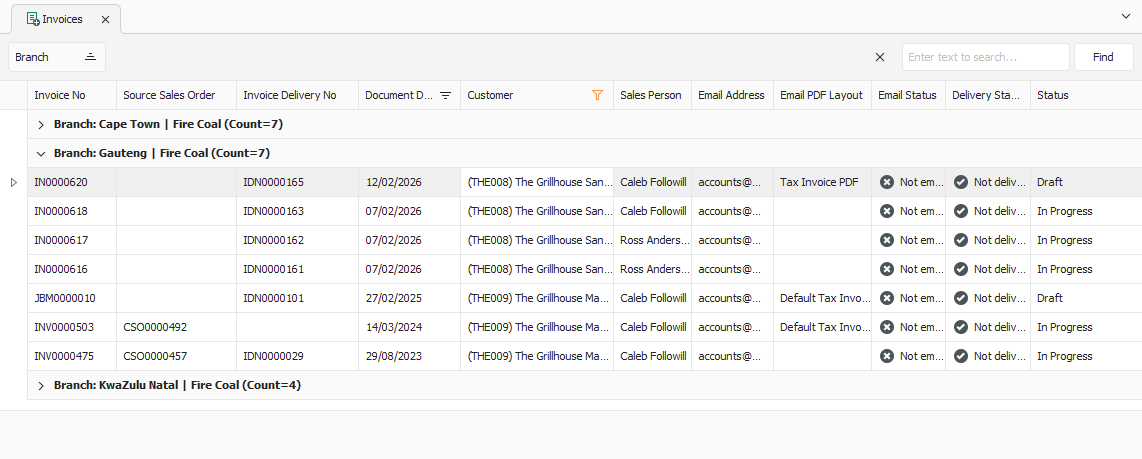
Opening the invoice displays its General tab.
General Tab
Confirm that the information on the General tab is correct.
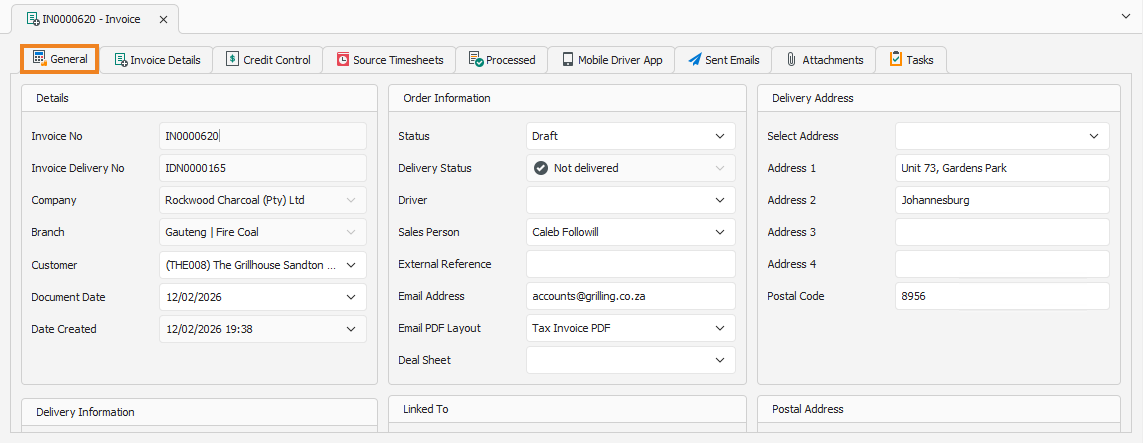
You can update some of the fields if required. Once done, click the Invoice Details tab to continue.
Invoice Details Tab
The Invoice Details tab displays the inventory items and quantities originally added to the invoice.
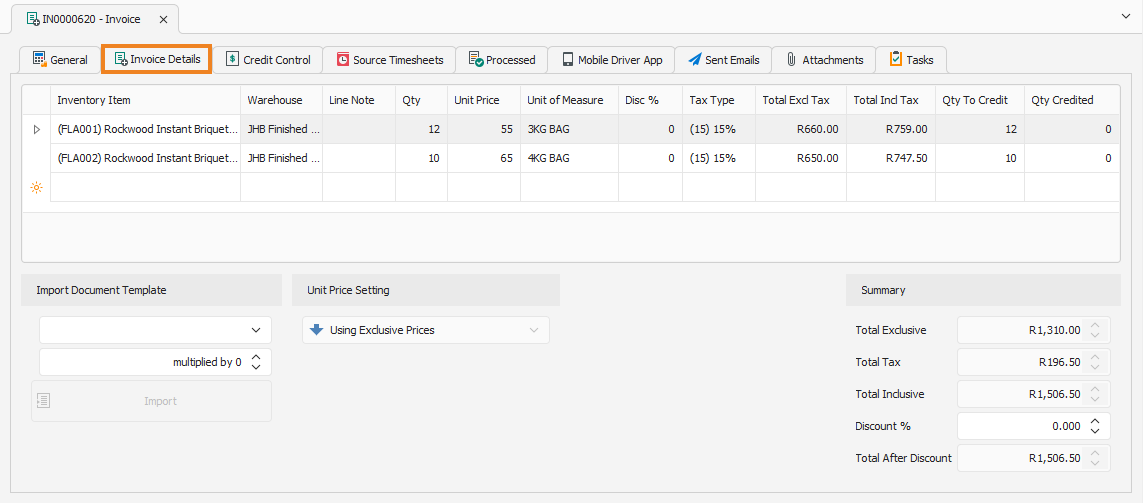
You can update some of the fields if required. Once done, click Process Invoice on the toolbar.

A popup appears, asking you to confirm the action.
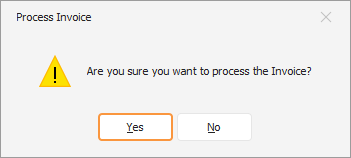
Click Yes to confirm the processing of the invoice. A popup confirms successful processing.
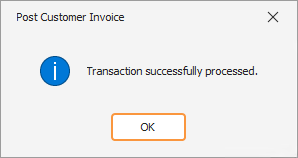
Click OK to close the popup and return to the invoice. With the invoice processed, it can now be printed and emailed.