
Navigation › Inventory › Processing › Inventory Items
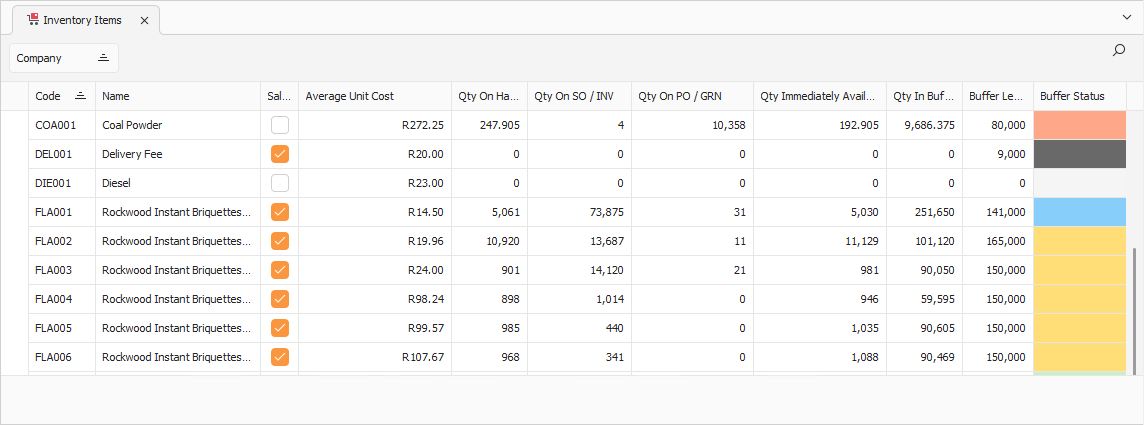
In order to accurately suggest replenishment quantities for inventory items, their replenishment settings need to be correctly configured. To configure an inventory item's replenishment settings, navigate to the relevant inventory item. Open it by double-clicking it in the list, or by selecting it and pressing Enter.
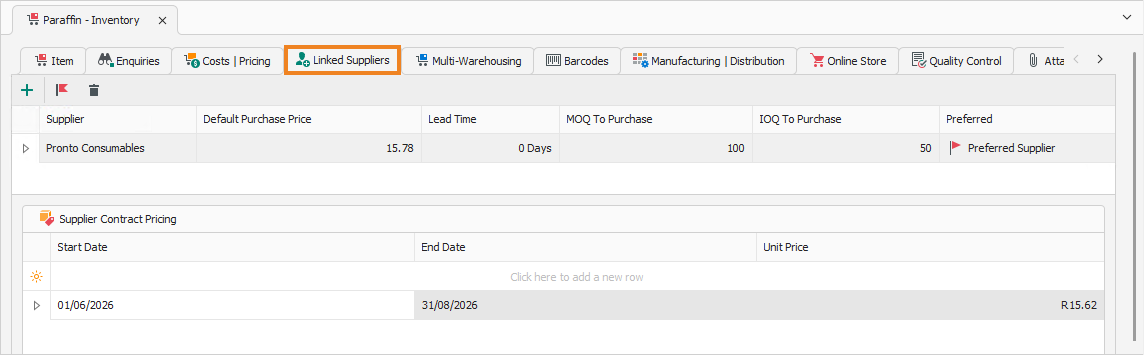
Opening the inventory item displays its Item tab. Click the Linked Suppliers tab to continue.
Linked Suppliers Tab
The Linked Suppliers tab allows you to link suppliers to the inventory item. When the inventory item is running low on stock, these suppliers can be used to replenish the stock quantities. This is where replenishment settings are configured.
Click Add to add a new supplier for the inventory item.
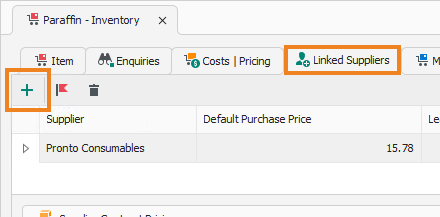
This creates a new blank supplier line.
- Select the Supplier to link to the inventory item. This supplier needs to exist on the system already.
- Enter the Default Purchase Price for the inventory item from this supplier.
- Enter the Lead Time in days that the supplier requires for this inventory item.
- Enter the supplier's minimum order quantity for this inventory item in the MOQ To Purchase column.
- Enter the supplier's incremental order quantity for this inventory item in the IOQ To Purchase column. This value rounds the order quantity for a material replenishment to a round number preferred by the supplier.
- Click the Set As Preferred Supplier flag to set this supplier as the preferred supplier for this inventory item.
Repeat the above steps until all required suppliers are linked to the inventory item. Once done, click Save (Ctrl+S). This saves the inventory item.