
Navigation › Inventory › Processing › Material Replenishment
Note: This article focuses on the simplest common use case for creating a new material replenishment.
Material replenishments are a means to replenish stock levels of inventory items that fall below their set buffer levels. The material replenishment automatically creates the required purchase orders and inter-branch transfers (IBTs) to replenish the required stock levels.
To add a new material replenishment, click New (Ctrl+N) on the toolbar. This opens a new blank Material Replenishment screen.
Note: Depending on your configuration, some fields are automatically populated when selections are made.
Material Replenishment
On the Material Replenishment screen, you must complete the material replenishment details and inventory item information.
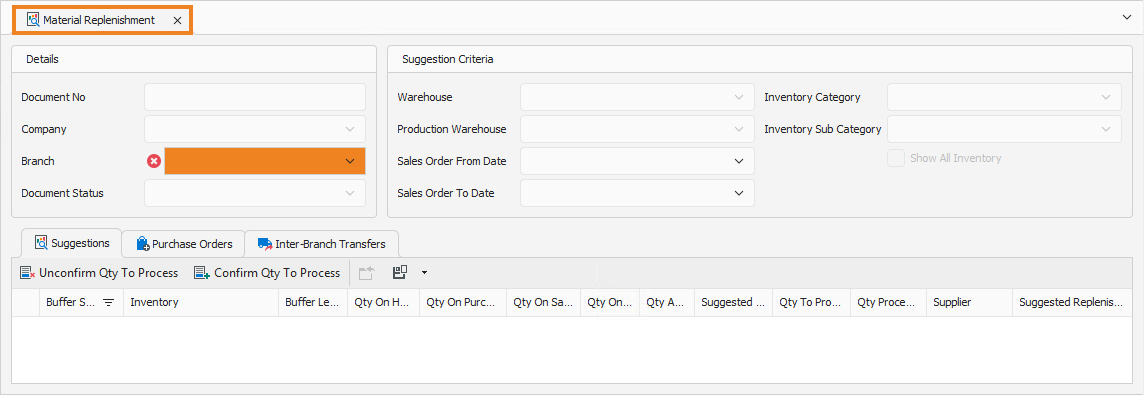
Details
- Select the Company for which you are creating the material replenishment.
Suggestion Criteria
- Select the Warehouse housing the inventory items for which you are creating the material replenishment.
Once done, click Create Replenishment.
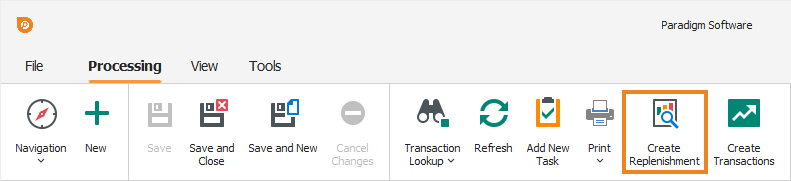
This creates the material replenishment lines in the Suggestions tab, based on the selected criteria and replenishment settings. It also saves the material replenishment and generates a new sequential document number in the Document No field.
Suggestions Tab
On the Suggestions tab, you must review and update the suggested replenishment quantities for the listed inventory items.
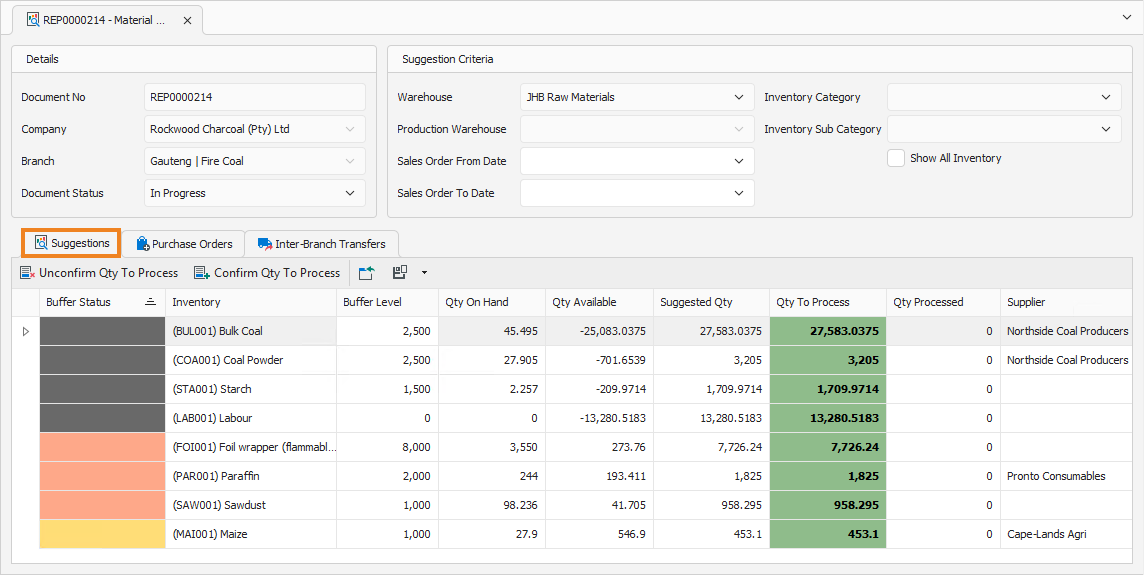
- The Buffer Status column displays the inventory item's buffer status.
- The Inventory column displays the inventory item's code and name.
- The Buffer Level column displays the inventory item's buffer level.
- The Qty On Hand column displays the inventory item's current quantity on hand.
- The Qty Available column displays the inventory item's current available quantity.
- The Suggested Qty column displays the suggested quantity to process for each inventory item.
- Enter the quantity to process for each inventory item on the list in the Qty To Process column.
- The Qty Processed column displays any quantities already processed for this inventory item. When creating a new material replenishment, this column displays 0.
- The Supplier column displays the suggested supplier from which each inventory item is sourced, if configured. These are the suppliers for whom transactions are created to replenish the inventory item quantities. Select a supplier for each inventory item you wish to replenish.
Once all the required inventory item quantities are updated, click Save (Ctrl+S) to save the material replenishment. You can also press Ctrl+Enter to save and close the material replenishment.