
Navigation › Production › Maintenance › Production Routing Templates
A production routing template combines multiple production routes into a single process that guides the production process from raw materials to finished goods. A production routing template is linked to a Bill of Materials (BOM) and automatically imported into the production ticket when the BOM is used.
To add a new production routing template, click New (Ctrl+N) on the toolbar. This opens a new blank Production Routing Template screen.
Production Routing Template
Here you have to complete the production routing template's information, such as details and task information.
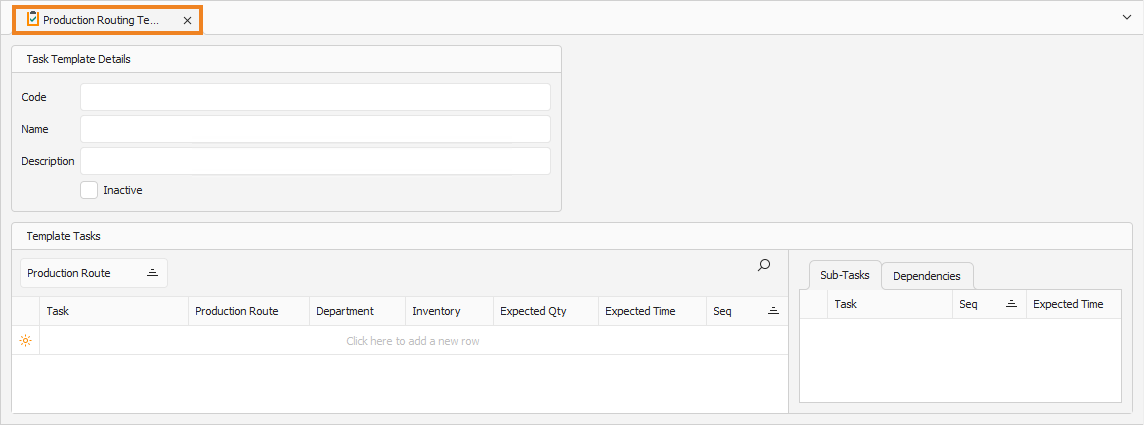
- Enter a Code for the production routing template.
- Enter a Name for the production routing template.
- Enter a Description for the production routing template.
- If the production routing template is inactive, check the Is Inactive checkbox.
Once done, click Save (Ctrl+S). This saves the production routing template.
Template Tasks
In the Template Tasks section, you have to add the tasks and their details to the production routing template.
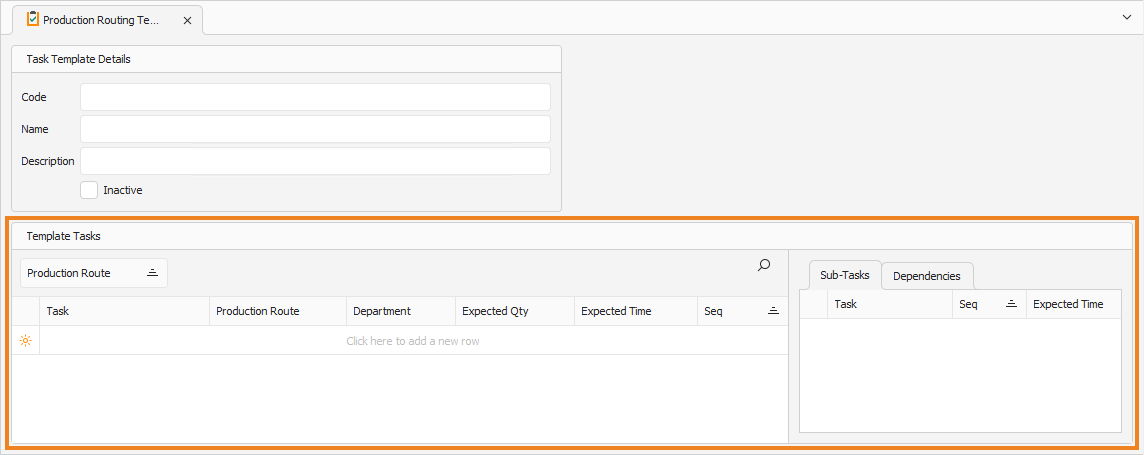
Note: Add a new task to the list by clicking the empty cell under Template Tasks.
- Enter a name for the Task to add to the production routing template.
- Select the Production Route to which the task is assigned.
Select the Department to which the task is assigned.
Enter the Expected Time for the task.
Enter the task's position in the production sequence in the Seq column.
Repeat the above steps until all required tasks are added to the production routing template. Once done, click Save (Ctrl+S). This saves the production routing template.
Task Dependencies
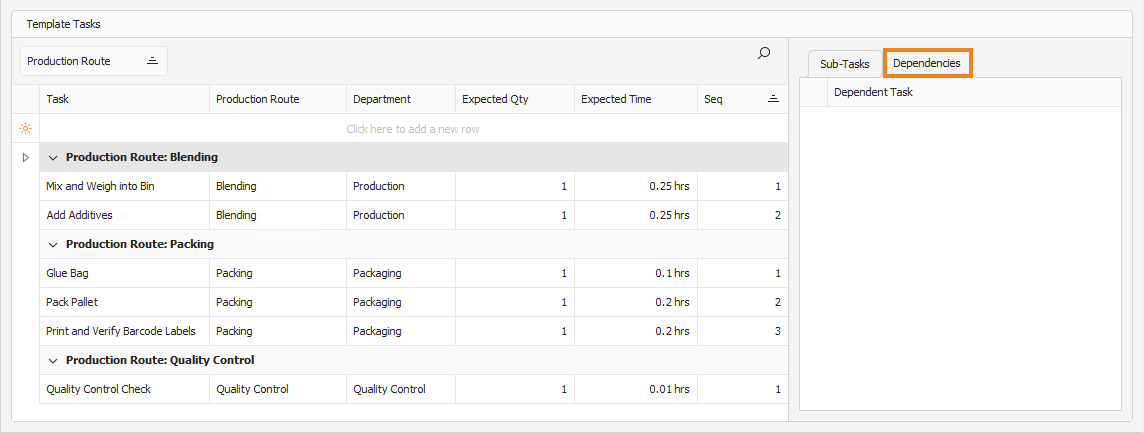
Once all the tasks are added, their dependencies can be created. Click the Dependencies tab to continue.
Select a task for which you want to create a dependency. This enables you to select a dependent task on the Dependencies tab.
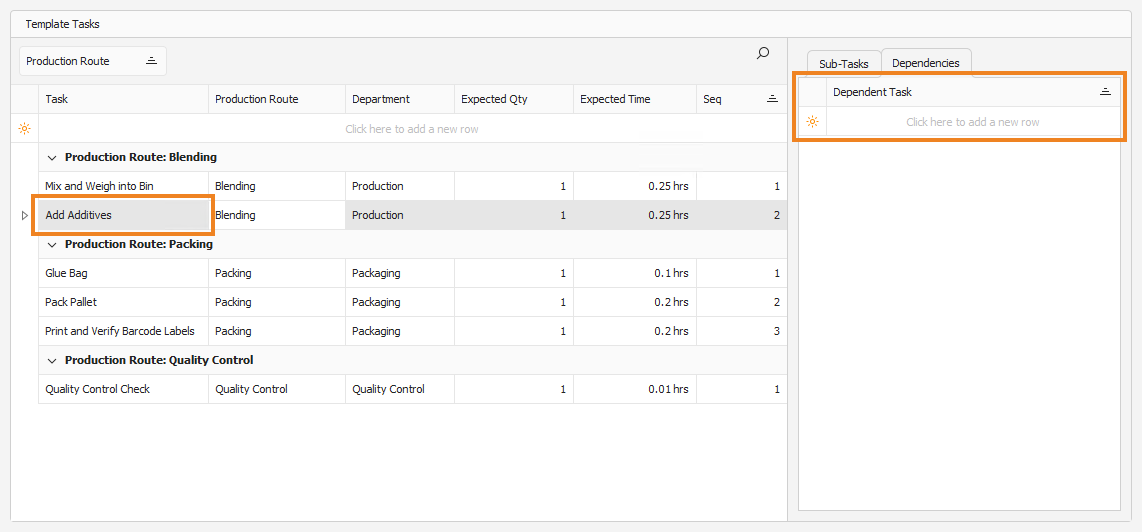
Note: Add a new task to the list by clicking the empty cell under Dependent Task.
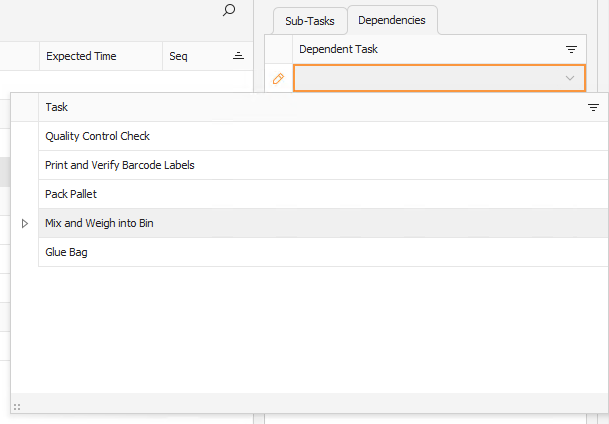
Select the dependent task from the list. This is the task that needs to be completed before the next task can proceed.
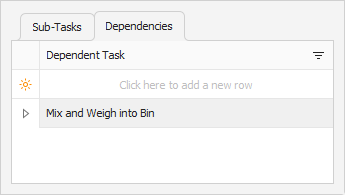
You can add as many dependent tasks as you wish. You can add dependent tasks to other tasks as needed.
Once done, click Save (Ctrl+S). This saves the production routing template.