
Navigation › Distribution › Processing › Vehicle Documents
Vehicles are used when delivery shipments are created. A vehicle document contains the vehicle's information and its operating costs.
Note: This article focuses on the minimum fields required to create a vehicle document.
To add a new vehicle document, click New (Ctrl+N) on the toolbar. This opens a new blank vehicle document screen on the Vehicle Document tab.
Note: Depending on your configuration, some fields are automatically populated when selections are made.
Vehicle Document Tab
On the Vehicle Document tab, you have to complete the vehicle information, including details and distribution costs.
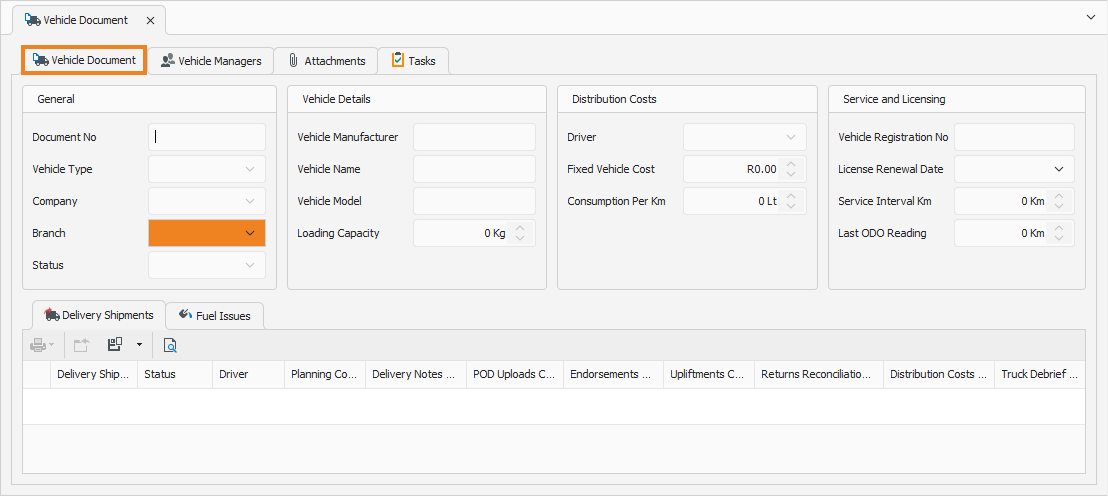
General
- Select the Branch for which the vehicle document is created.
- Select the Vehicle Type from the list of predefined types.
Vehicle Details
- Enter the Vehicle Manufacturer.
- Enter the Vehicle Name.
- Enter the Vehicle Model.
- Enter the vehicle's Loading Capacity in kilograms.
Distribution Costs
- Select the Driver who will be driving this vehicle.
- Enter the Fixed Vehicle Cost. This is the minimum cost incurred for this vehicle, regardless of the shipment's size or distance.
- Enter the vehicle's fuel Consumption Per Km.
Servicing and Licensing
- Enter the Vehicle Registration No.
- Enter the vehicle's Licence Renewal Date.
- Enter the vehicle's Service Interval Km.
- Enter the vehicle's Last ODO Reading.
Once done, click Save (Ctrl+S). This saves the vehicle document. You can also press Ctrl+Enter to save and close the vehicle document.