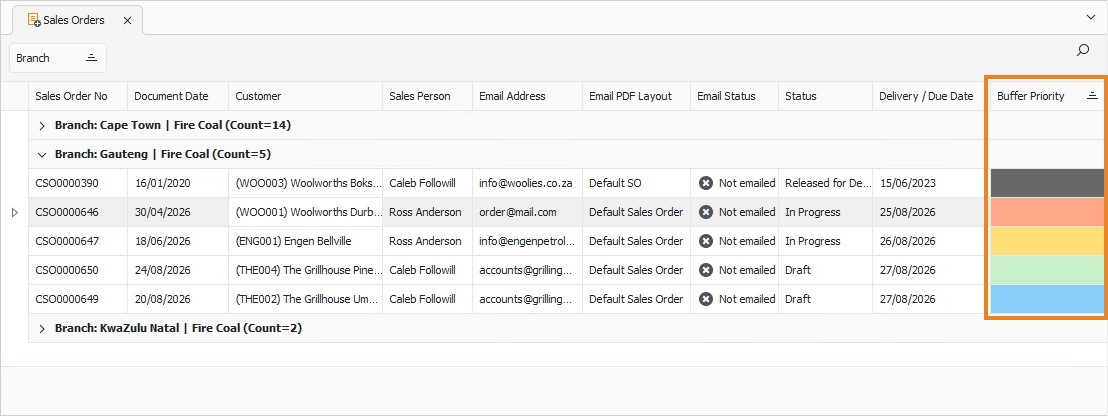
Navigation › Documents › Processing › Sales Orders
Note: This article focuses on explaining buffer priorities on sales orders.
Buffer priorities are displayed on sales orders. To add a new sales order, click New (Ctrl+N) on the toolbar. This opens a new blank Sales Order screen on the General tab.
General Tab
On the General tab, you have to complete the Sales Order's administrative information, such as customer and delivery information.
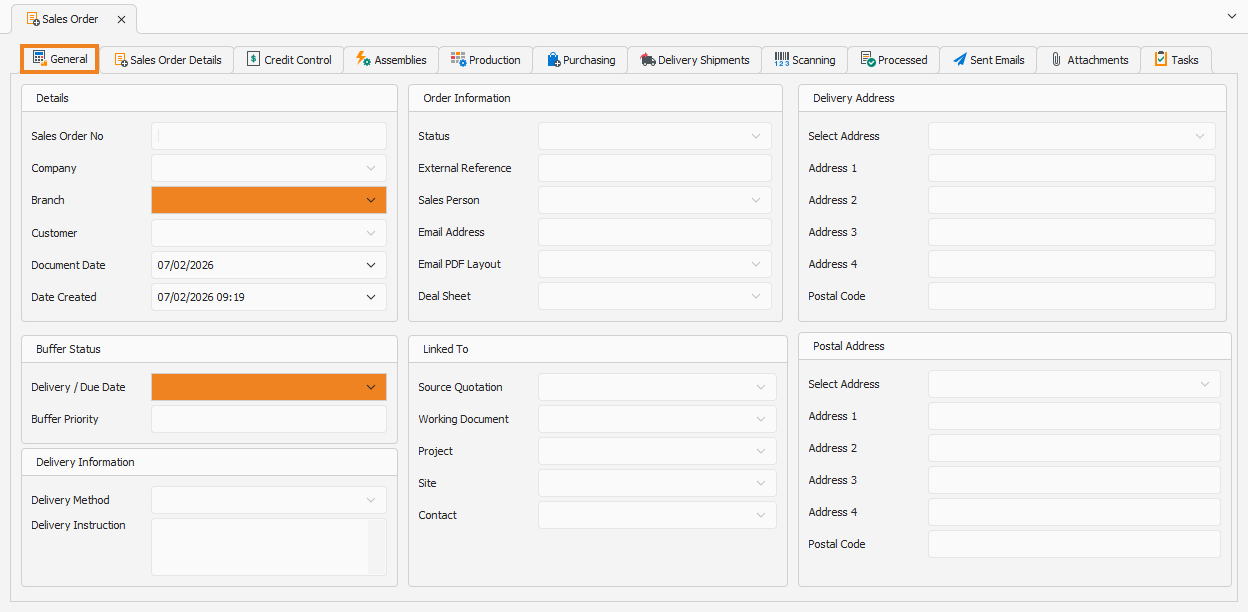
Once the branch is selected, its default order lead time is applied. The resulting date is automatically populated in the Delivery / Due Date field. This date can be updated if required.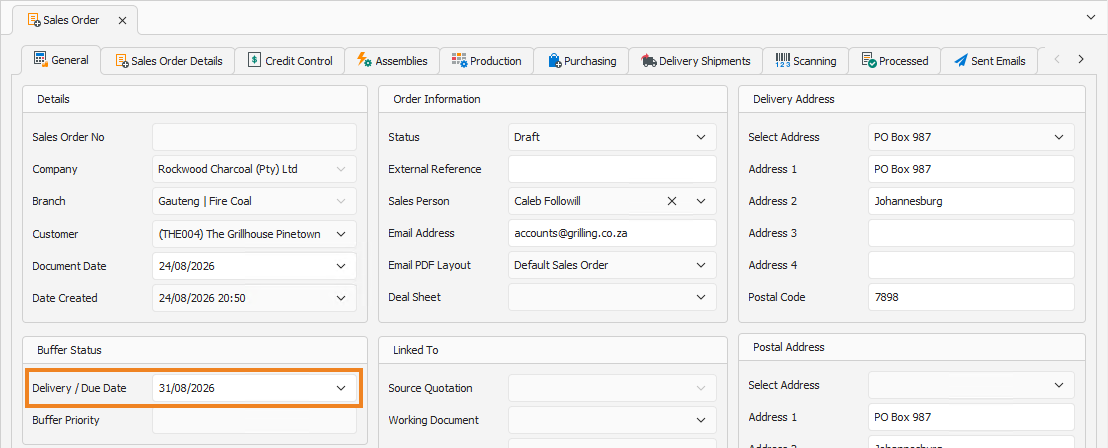
As soon as the sales order is saved, the Buffer Priority field is populated with the colour corresponding to the applicable buffer priority.
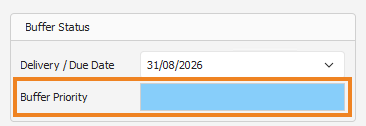
Depending on the branch's configuration, this buffer priority colour changes over time. As the delivery/due date approaches, the Buffer Priority colour is updated, changing from Blue to Green, then Amber, and finally Red. If the sales order becomes overdue, the colour changes to Black.