
Navigation › Administration › Setup › Companies
3-Stage Invoicing
With 3-stage invoicing enabled, the delivery note and invoice are separated. A delivery note is generated from a sales order, and the invoice is generated from the delivery note. This is suitable for companies that complete deliveries but only invoice them at a later stage.
To enable 3-stage invoicing for a company, navigate to the relevant company. Open it by double-clicking it in the list, or by selecting it and pressing Enter.

Opening the company displays its Details tab. Click the Settings tab to continue.
Settings Tab
The Settings tab displays the company's document, transaction and other settings.
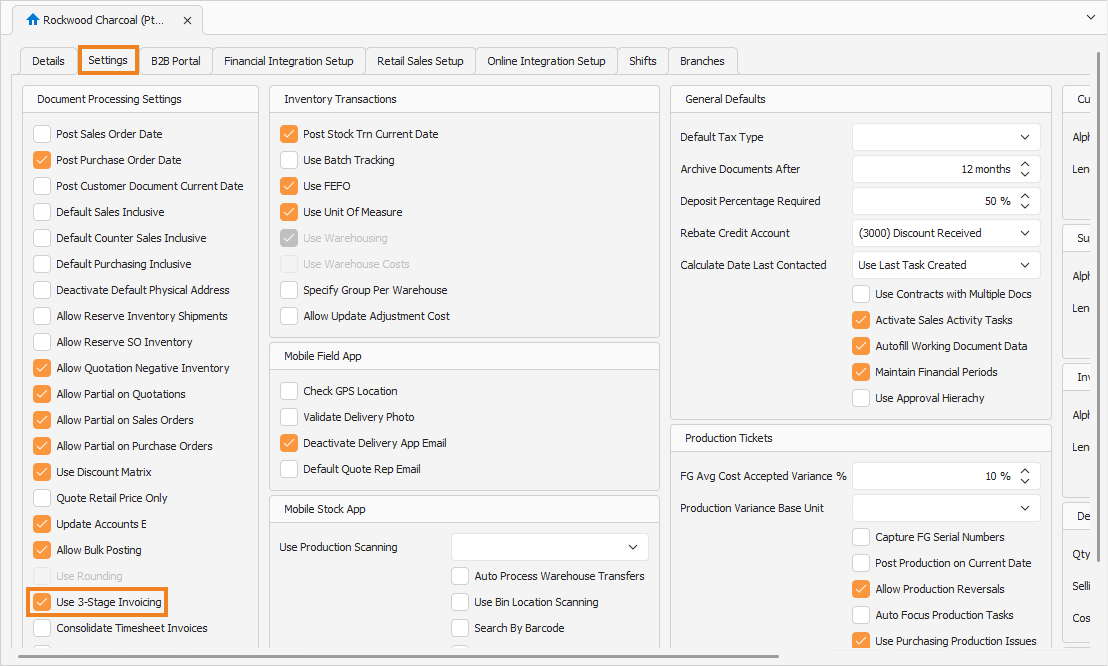
Ensure Use 3-Stage Invoicing is ticked. This enables 3-stage invoicing for the company.
To see 3-stage invoicing in practice, create a sales order. Refer to the Add a New Sales Order article for more information on how to proceed.
Navigation › Documents › Processing › Sales Orders
Sales Order
With the sales order created, click Generate Delivery Note on the toolbar.

A popup appears, asking you to confirm the action.
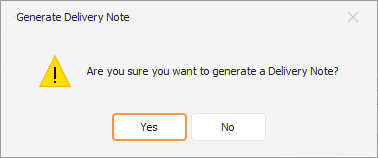
Click Yes to confirm the generation of the delivery note. A confirmation popup appears, displaying the newly generated sequential delivery note number.
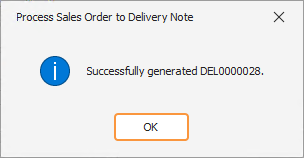
Click OK to close the popup and return to the sales order. Click the Processed Tab to display the generated invoices for this sales order.
Processed Tab
The Processed tab displays the delivery notes and invoices generated from this sales order. By default, the Invoices tab is displayed. Click the Delivery Notes tab to continue.
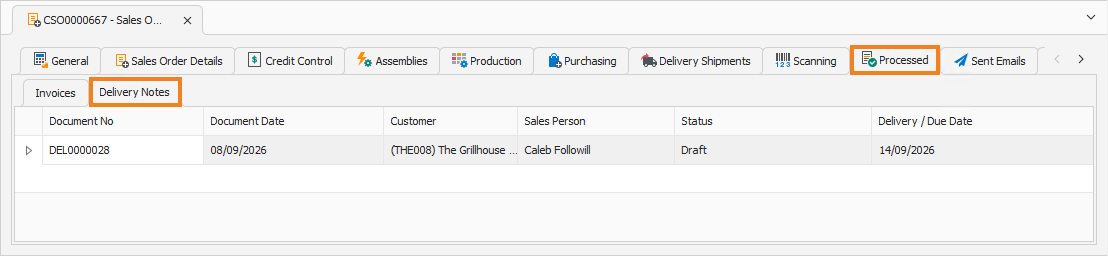
Open the invoice by double-clicking it in the list, or select it and press Enter.
Delivery Note
Opening the delivery note displays its General tab.
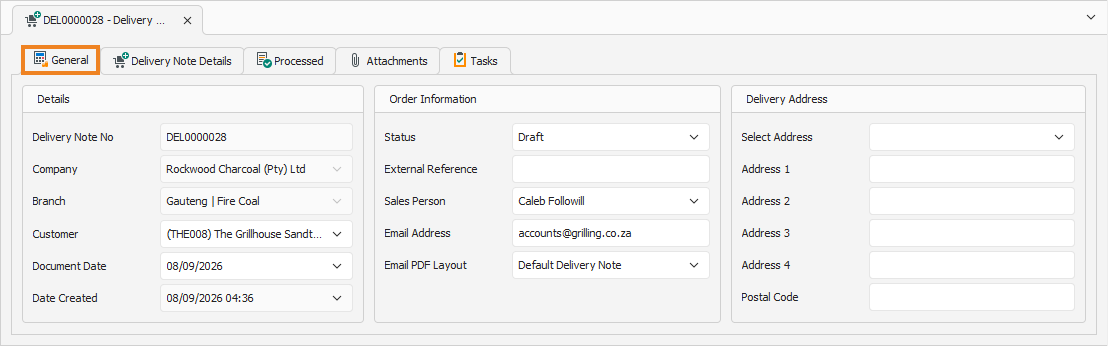
General Tab
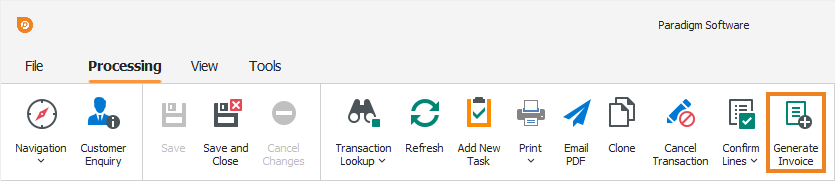
Confirm that the information on the General tab is correct. Once done, click Generate Invoice on the toolbar.
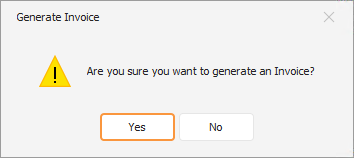
A popup appears, asking you to confirm the action.
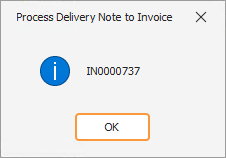
Click Yes to confirm the generation of the invoice. A confirmation popup appears, displaying the newly generated sequential invoice number.
Click OK to close the popup and return to the delivery note. Click the Processed Tab to display the generated invoices for this delivery note.
Processed Tab
The Processed tab displays the invoices generated from this sales order. By default, the Invoices tab is displayed. Click the Delivery Notes tab to continue.
Open the invoice by double-clicking it in the list, or select it and press Enter. This invoice is also listed on the original Sales Order and can be viewed there.