
Navigation › Documents › Processing › Supplier Invoices
Note: This article focuses on the simplest common use case for generating an unprocessed return to supplier (RTS) from an existing invoice.
To generate an unprocessed RTS from a supplier invoice, navigate to the relevant supplier invoice.
Note: An RTS can only be generated from a supplier invoice that has been posted to finance.
Open it by double-clicking it in the list, or by selecting it and pressing Enter.
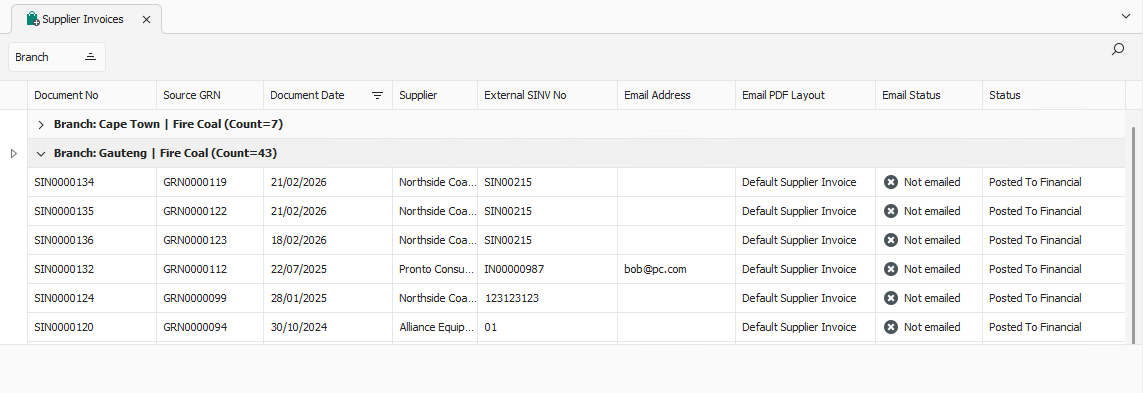
Opening the invoice displays its General tab.
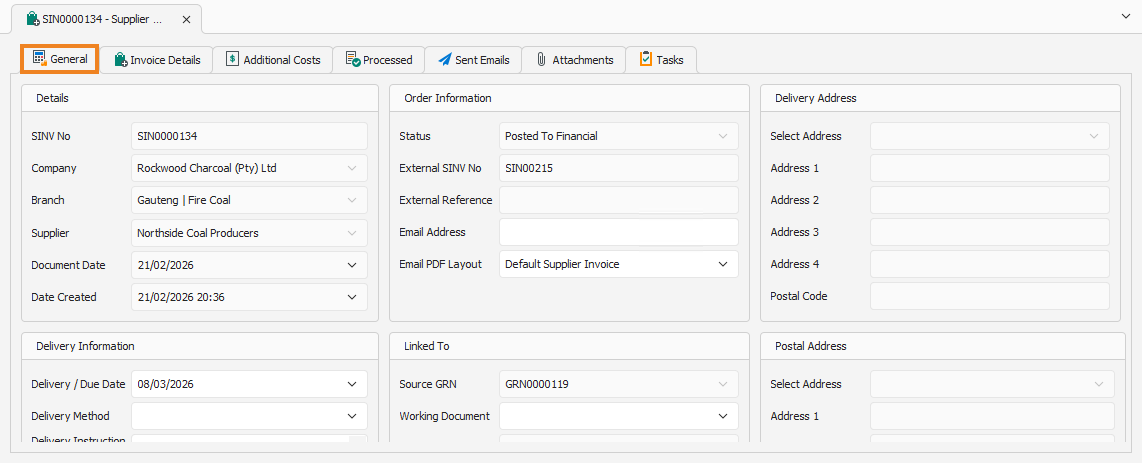
General Tab
Confirm that the information on the General tab is correct.
Invoice Details Tab
The Invoice Details tab displays the inventory items and quantities that have been invoiced and processed.
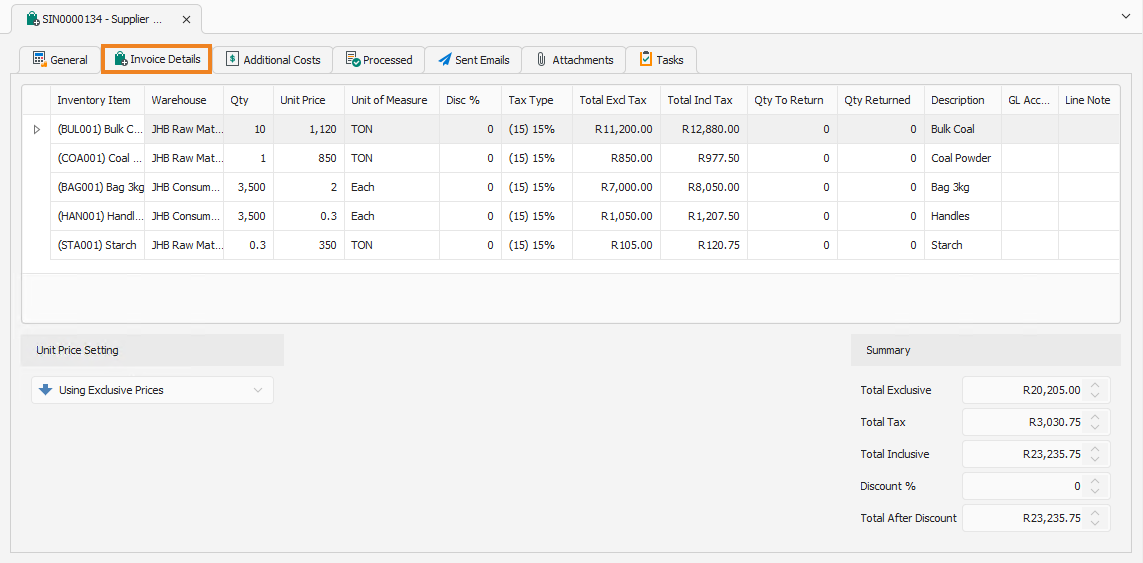
Invoices can be either fully or partially returned when generating an RTS. To partially return a supplier invoice, update the Qty To Return column to reflect the quantities to include in the RTS. To return the invoice in full, no changes to the item quantities are required.
Note: The quantities in the Qty To Return column cannot be more than the originally invoiced and processed quantities.
Once all item quantities have been updated or verified, click Generate RTS on the toolbar.
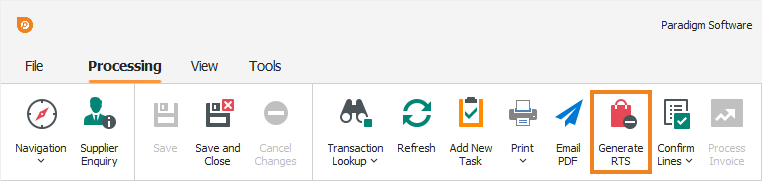
This generates the RTS. A confirmation popup appears, displaying the newly generated sequential RTS number.
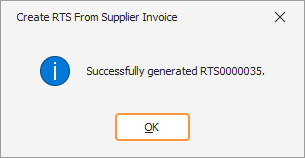
Click OK to close the popup and return to the supplier invoice. Click the Processed Tab to display the generated RTSs for this invoice.
Processed Tab
The Processed tab displays the RTSs generated from this supplier invoice.
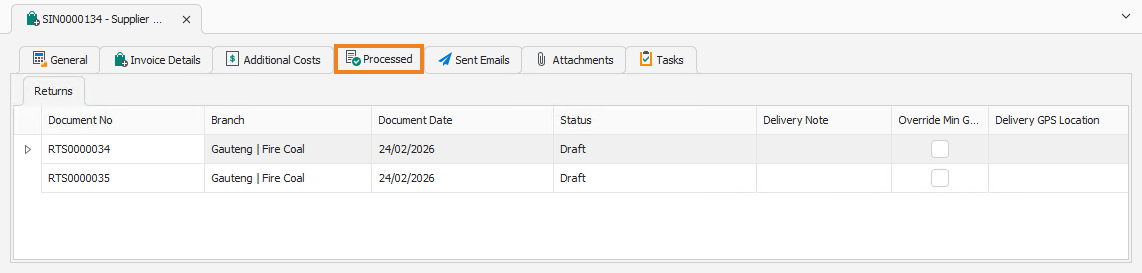
To open the RTS for viewing, double-click it in the list, or select it and press Enter.