
Navigation › Production › Processing › Production Tickets
A production ticket allows you to add one or more finished good items to a production run. A production run is a multi-step process that ultimately consumes raw materials and consumables out of stock to create finished goods items into stock. This allows you to better manage the different stages of the workflow.
Before a production ticket can be created, the relevant inventory items and bill of materials must exist.
Note: This article focuses on the simplest common use case for creating a production ticket.
To add a new production ticket, click New (Ctrl+N) on the toolbar. This opens a new blank Production Ticket screen on the General tab.
Note: Depending on your configuration, some fields are automatically populated when selections are made.
General Tab
On the General tab, you have to complete the production ticket information, such as the branch and company information, and production dates.
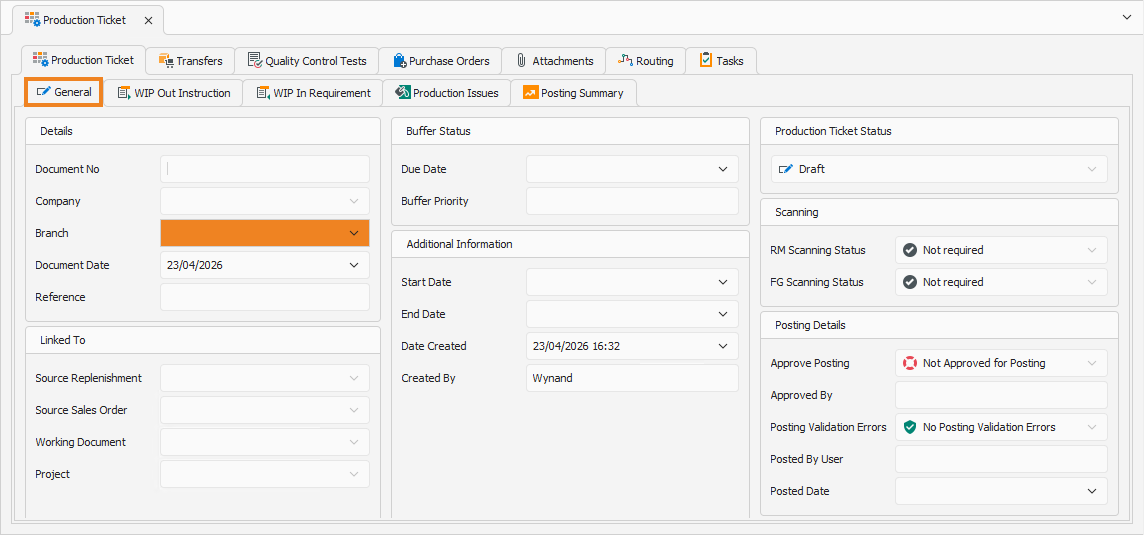
Details
- Select the Branch for which you are creating the production ticket.
- Document Date automatically populates to the current date. This date can be updated if required.
Buffer Status
- Select the Due Date for the item(s) to produce.
- The Buffer Priority block indicates how soon the production ticket needs to be processed.
Additional Information
- Select the planned Start Date for the production run.
- Select the planned End Date for the production run.
Once done, click Save (Ctrl+S). This saves the production ticket and generates a new sequential document number in the Document No field. Click the WIP Out Instruction tab to continue.
WIP Out Instruction Tab
On the WIP Out Instruction tab, you have to complete the production tickets finished goods items information, such as inventory items and their quantities.
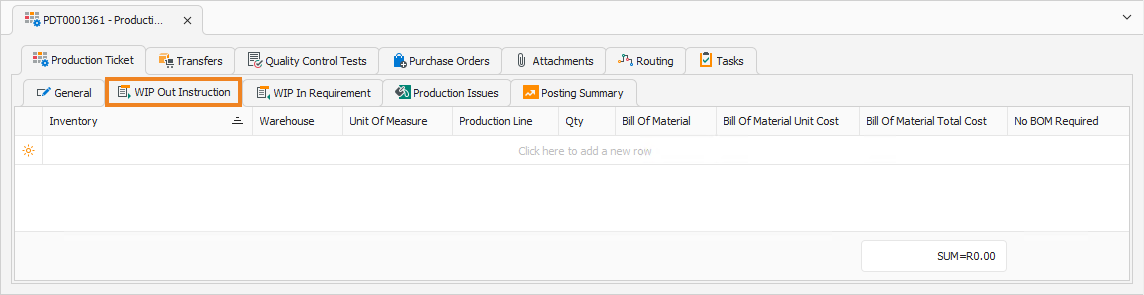
Note: Add a new line item to the list by clicking the empty cell under Inventory.
- Select the finished goods Inventory item to add to the WIP Out Instruction.
- Select the Warehouse where the items are moved into stock after production.
- Confirm the Unit of Measure for the items.
- Select the Production Line for this item.
- Enter the number of items to produce in the Qty field. This is how many of these items are produced.
- Select the Bill Of Material to use for this item in the production run.
Once done, click Recalculate Ticket, or Save (Ctrl+S) the production ticket.

- The Bill Of Material Unit Cost field now displays the cost to produce a single item with the selected Bill Of Material.
- The Bill Of Material Total Cost field now displays the cost to produce all indicated items with the selected Bill Of Material.
Repeat the above steps until all the required items are added to the production run.
Note: When adding multiple items to the production run, their costing methods must be the same. However, only one item can be added if it uses the Actual Cost method.
Once done, click Recalculate Ticket, or Save (Ctrl+S) the production ticket.

Click the WIP In Requirement tab to continue.
WIP In Requirement Tab
The WIP In Requirement tab displays the raw materials and consumables required to fulfil the production run. It also includes the Unit Cost and Total Cost per inventory item, per finished good item.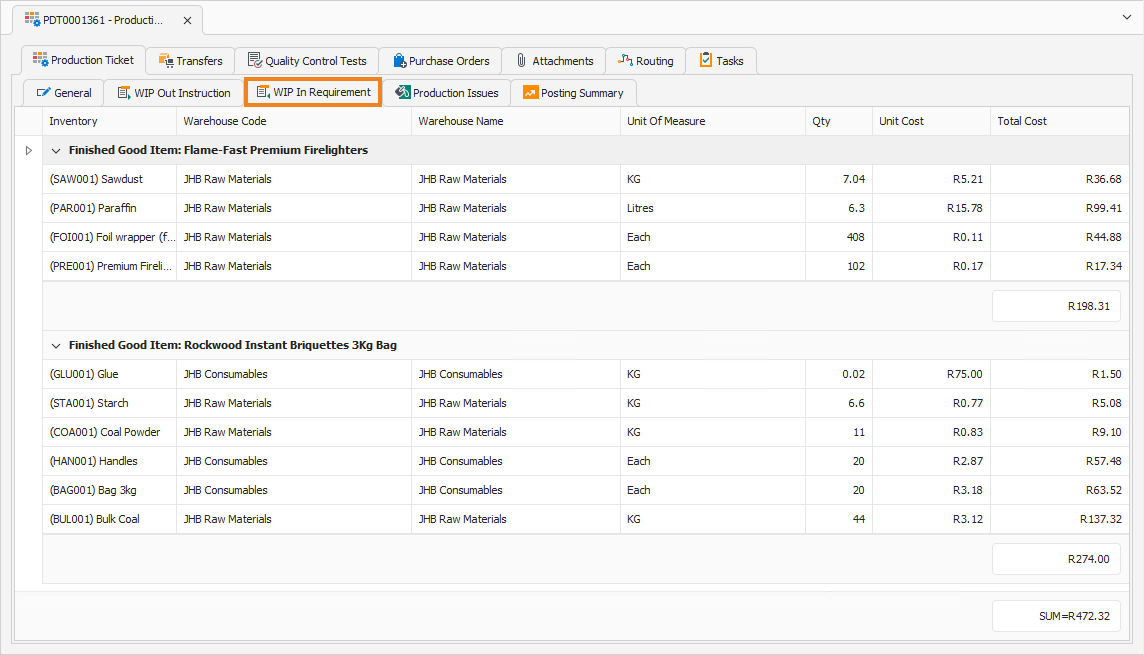
Once done, click Save (Ctrl+S). This saves the production ticket. You can also press Ctrl+Enter to save and close the production ticket.