
Navigation › Production › Processing › Production Tickets
The Production Issues tab is used during production and reconciliation to view or update the actual quantities of finished goods items produced into stock, as well as the raw materials and consumables consumed out of stock during the production run.
Note: The production issues tab is only populated and editable when the production ticket is in production. The production issues can only be viewed when the production ticket is in reconciliation.
To update a production ticket's production issues, navigate to the relevant production ticket. Open it by double-clicking it in the list, or by selecting it and pressing Enter.
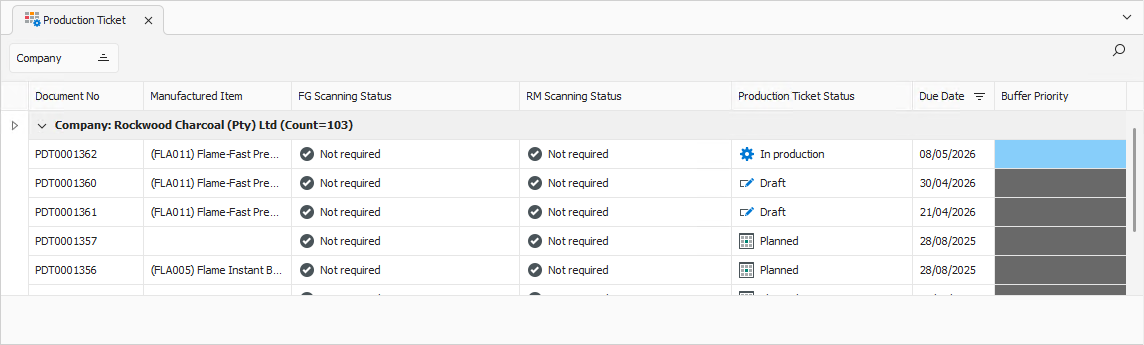
Opening the production ticket displays its General tab.
General Tab
Confirm that the information on the General tab is correct.
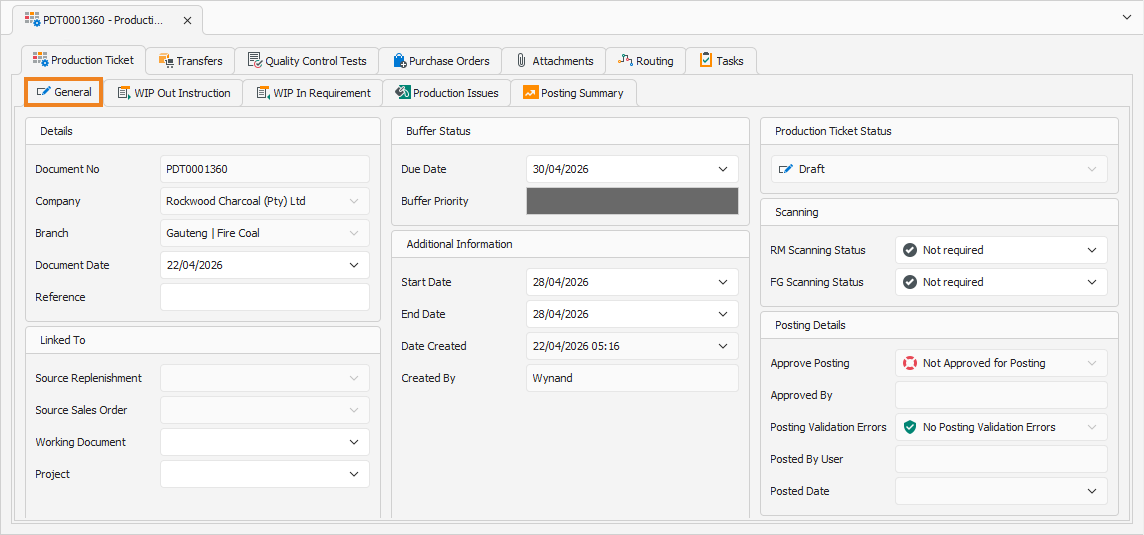
If needed, update the ticket's status to In Production. Once done, click the Production Issues tab to continue.
Production Issues Tab
The Production Issues tab displays the finished goods items, raw materials and consumables produced and required during the production run. This tab captures variances between the calculated Bill of Materials quantities and the actual quantities consumed and produced during the production run.
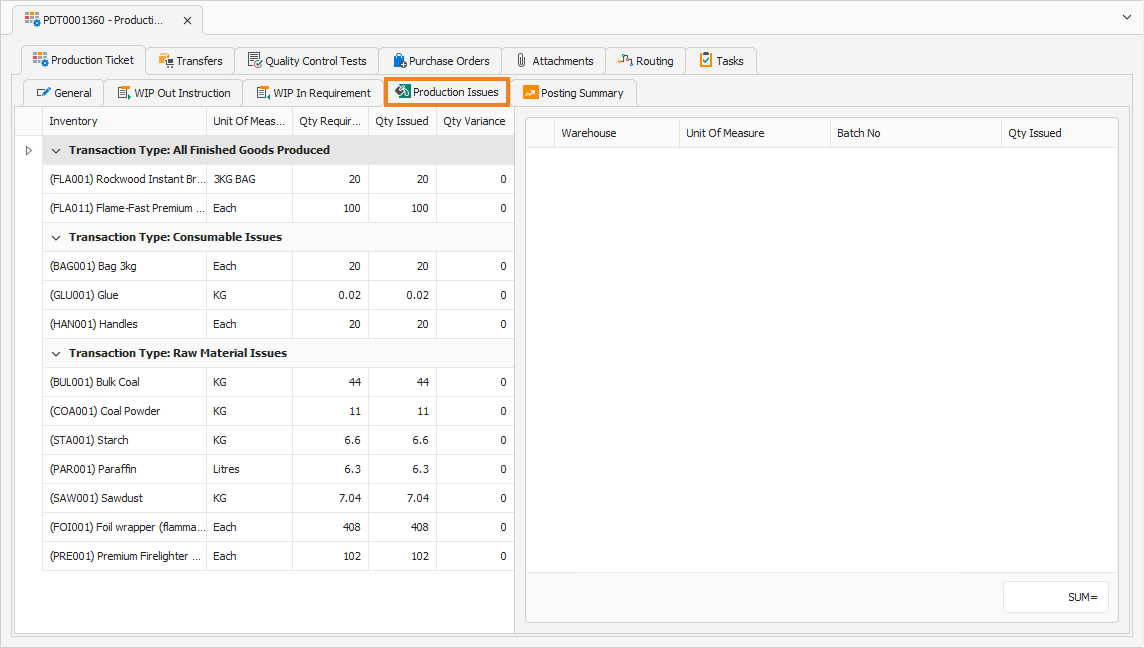
If the actual quantities consumed or produced during the production run do not match the initial requirements, you can update them. Click a line item to update. This displays the item's information in the block on the right-hand side.
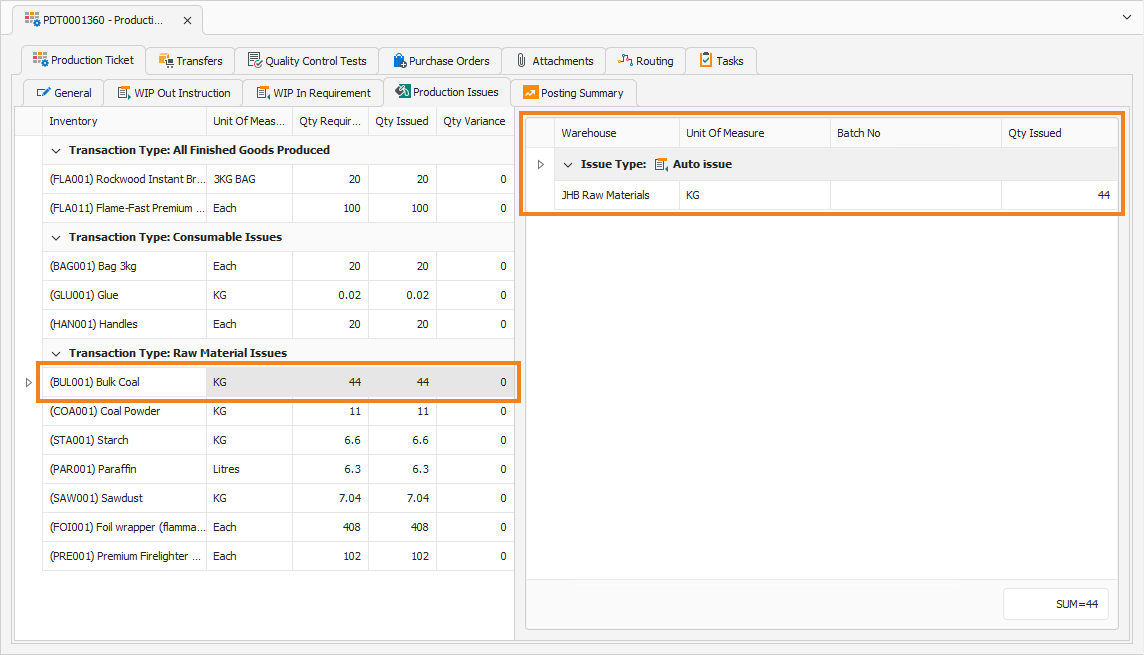
In the block on the right-hand side, update the Qty Issued amount to reflect the actual quantity consumed or produced during the production run. Repeat this process for all finished goods items, as required.
If any raw materials or consumables were consumed during the production run that are not indicated on the left-hand side, click Production Issues to add them.

This opens the Production Ticket Issues popup.
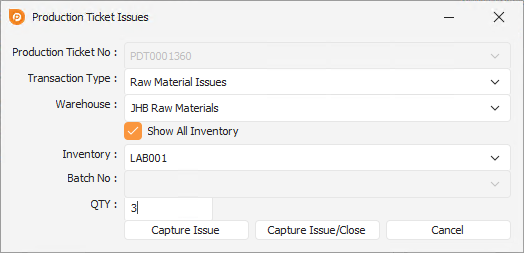
Select the raw material, consumable or byproduct produced or consumed during the production run. Click Capture Issue to capture the production issue and add it to the list, or Capture Issue/Close to capture the production issue and close the Production Ticket Issues popup.
Once all production issues have been added, click Recalculate Ticket.

This updates the line items on the left-hand side and displays the actual Qty Issued and Qty Variance numbers.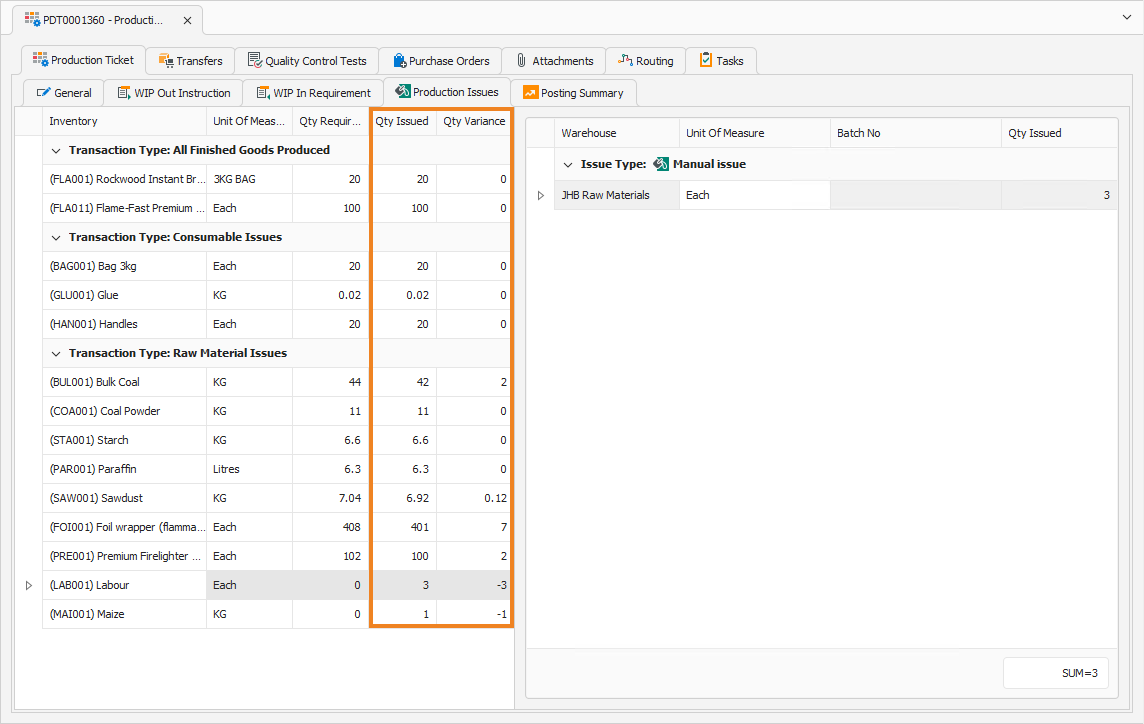
Once done, click Save (Ctrl+S). This saves the production ticket. You can also press Ctrl+Enter to save and close the production ticket.