
Navigation › Production › Processing › Production Tickets
Note: This article covers the simplest common use case for processing a production ticket.
Approved, unprocessed production tickets can be processed. To process a production ticket, navigate to the relevant production ticket. Open it by double-clicking it in the list, or by selecting it and pressing Enter.
Note: Several parts of the system are affected when processing a production ticket. Most notably:
- Stock levels are updated for the finished goods items into stock, and consumables and raw materials out of stock.
- The average unit cost for the finished goods items in stock are recalculated and updated.
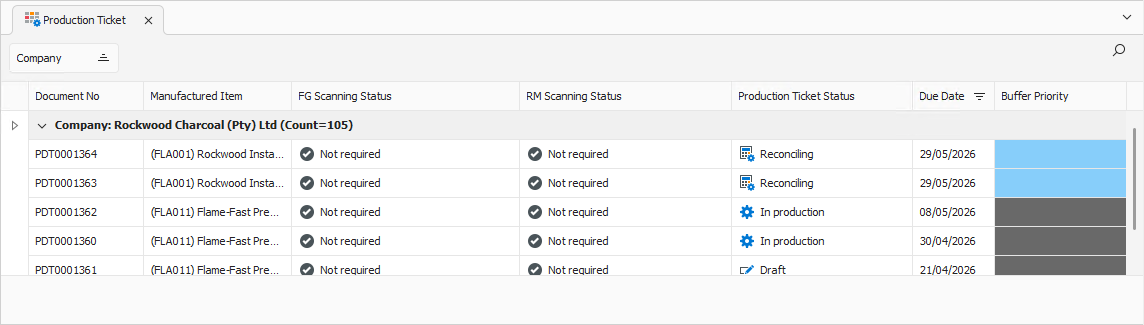
Opening the production ticket displays its General tab.
General Tab
Confirm that the information on the General tab is correct.
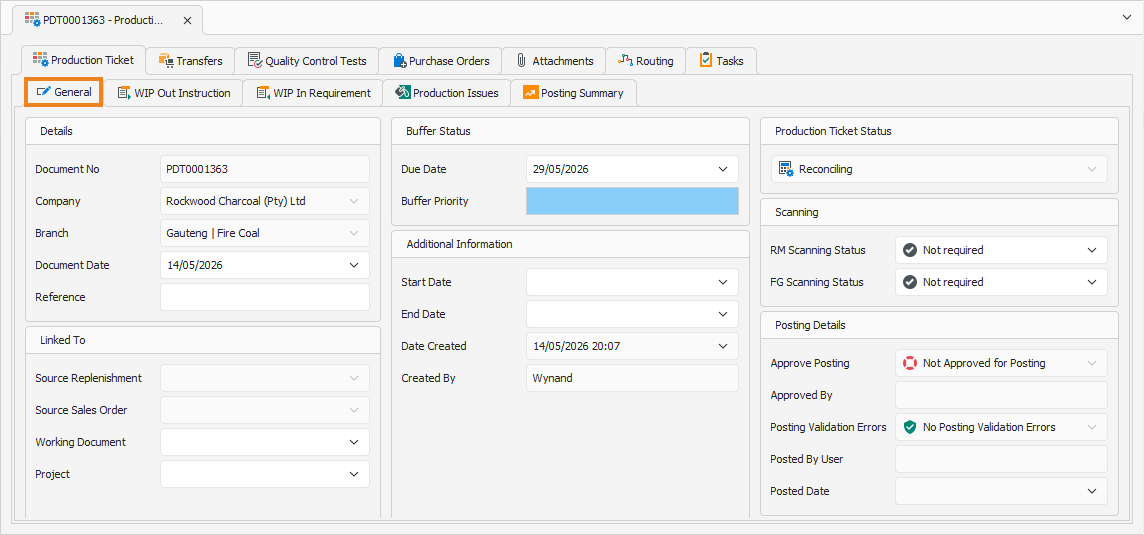
You can update some of the fields if required. Once ready, click Process Ticket on the toolbar.

A popup appears, asking you to confirm the action.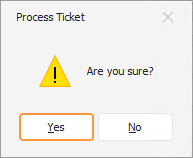
Click Yes to confirm the processing of the production ticket. This processes the ticket, and a popup confirms the successful processing.
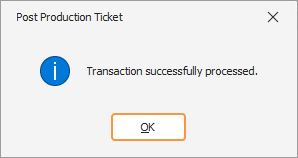
Click OK to close the popup and return to the production ticket. With the production ticket processed, it can now be printed.